How to Convert DVD to MKV Free and Lossless: 6 Tested Tools in 2026

Summary: To convert a DVD to MKV, you need a DVD ripper that supports MKV output. MakeMKV is for lossless MKV copies from DVDs, HandBrake is for compressed MKV files, and DVDFab DVD Ripper offers both. The workflow is basically the same: insert the disc, open the software, select the DVD drive as the source, choose MKV as the output format (DVDFab supports both compressed and passthrough MKV), and start the conversion.
Table of Contents
When I searched for a DVD to MKV converter, my first concern was not simply converting the disc. I wanted a file I could keep long-term without losing the original video stream, and I also needed something that would play smoothly on my NAS with the audio track and subtitles I actually use. Most readers land on this page for the same reason: the disc plays on a shelf player, but the laptop no longer has an optical drive, and the file needs to work in Plex, VLC, or on a phone.
The decision usually comes down to two paths. A lossless MKV keeps the source MPEG-2 video and the original audio streams intact, which is ideal for archiving. A re-encoded H.264 or H.265 MKV trades some quality and processing time for a much smaller file that travels better across devices. In this guide I compare six DVD to MKV converters I tested on Windows 10 and my M4 MacBook Air, walk through the steps for each, cover how to rip a DVD when the disc will not read or the wrong title is selected, and end with a compact fit-based recommendation.
Lossless MKV or Smaller H.264/H.265?
Before choosing a tool, decide what the finished file needs to do. A passthrough MKV rewraps the DVD's original MPEG-2 video and AC3 or DTS audio into an MKV container without re-encoding, so the streams stay intact and the rip finishes quickly. An H.264 or H.265 MKV decodes the source and re-encodes it, which takes longer and introduces some quality loss but produces a much smaller file. If the priority is broad device compatibility rather than the MKV container itself, an MP4 is often the easier choice, and I cover that in the companion guide on how to convert DVD to MP4 .
| Output | Source streams | Typical size | Processing time | Best use |
| MKV Passthrough | Kept as-is (MPEG-2 + original audio) | 4-8 GB per disc | Short (remux only) | Long-term archive; Plex or Jellyfin library where storage is not the constraint |
| MKV H.264 | Re-encoded video, audio retained or re-encoded | 1-2 GB per disc | Longer (depends on CPU/GPU) | Wide device playback, safer compatibility choice |
| MKV H.265 (HEVC) | Re-encoded to HEVC | ~700 MB - 1.5 GB per disc | Longer than H.264 | Smaller files on HEVC-capable devices |
| MP4 (H.264) | Re-encoded, single audio/subtitle usually | 1-2 GB per disc | Similar to MKV H.264 | Phones, tablets, TVs, and casual sharing where MKV support is uncertain |
My own preference for the shelf collection is passthrough for anything I want to keep, and H.265 MKV only for discs I actually watch on the go. For a Plex library on a home server, I would also read the sibling guide on how to rip DVDs for Plex before deciding on codec and audio track layout, because your player mix matters more than any single "best" setting.
The rest of this guide covers the tools that make each path practical: MakeMKV for a free lossless remux, HandBrake for compressing a readable source, DVDFab DVD Ripper when you want both in one desktop app, and three secondary options for specific cases.
Convert DVD to MKV with DVDFab DVD Ripper: Lossless Passthrough and Re-encode
If you picked the lossless path in the decision table but also want the option to compress later without switching apps, DVDFab DVD Ripper handles both in one desktop workflow. It reads DVD discs, ISO images, and VIDEO_TS folders, offers MKV passthrough profiles as well as H.264 and H.265 MKV profiles, and lets you control titles, chapters, audio tracks, and subtitles (switchable or burned in).
For difficult discs, the cloud service supports protected disc content so you can back up copy-protected DVDs you own or are authorized to copy, where permitted by applicable law. GPU acceleration, a batch queue, and TMDB metadata export to .nfo files round out the workflow. For readers who want passthrough and compression in one desktop app, and who are backing up discs they own or are authorized to copy, this covers both paths without switching tools.
- • Why I picked it: One desktop app for MKV passthrough or H.264/H.265 MKV, with track and subtitle controls in the same workflow.
- • Working System: Windows 11/10/8.1/8/7 & macOS 10.13 - 15.x
Run DVD to MKV Converter and Add Your Source
Launch DVDFab 13 and select the Ripper module.
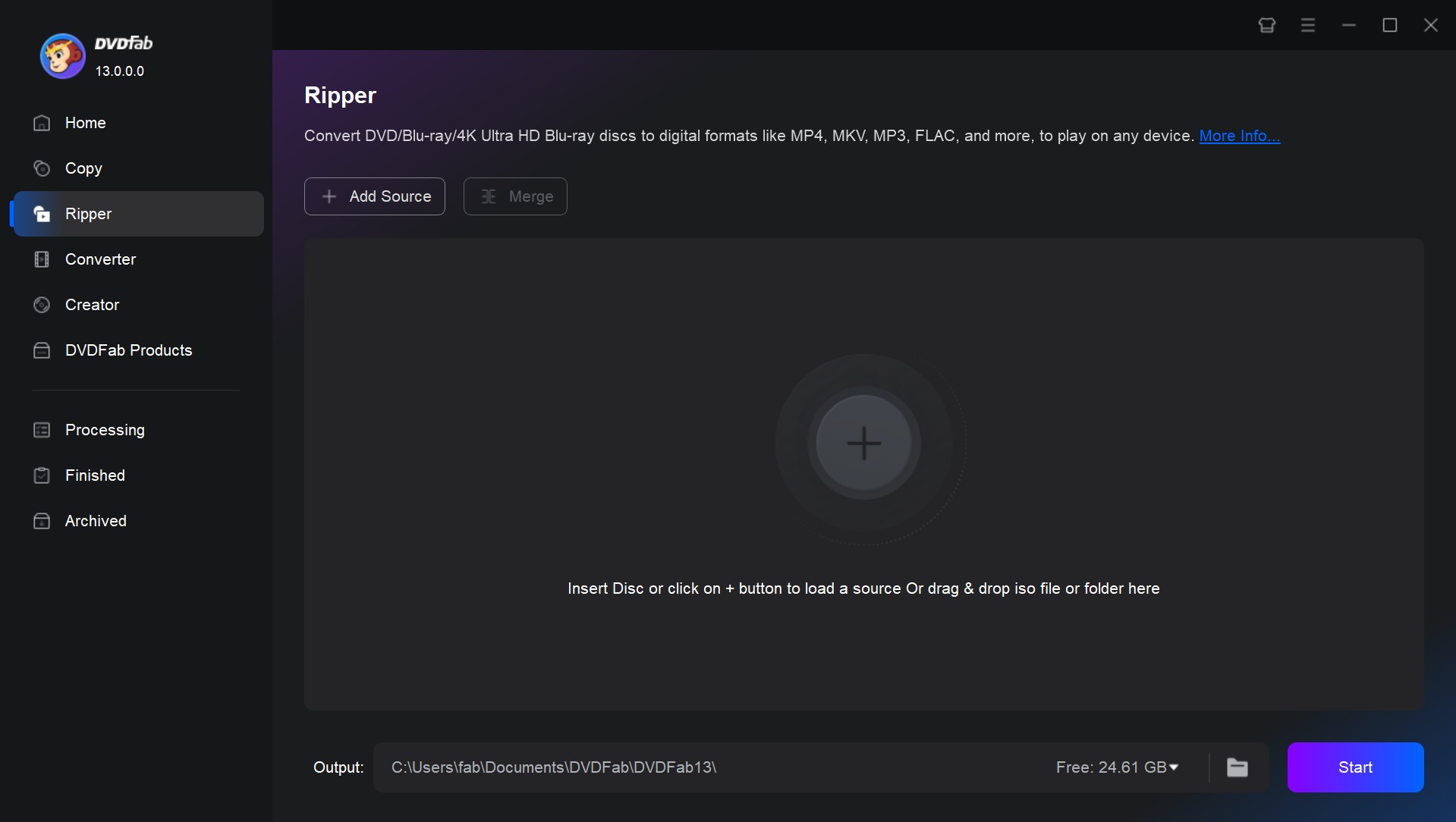
Insert your DVD disc, or click +Add Source to load your source file. The Ripper accepts a physical DVD, an ISO image, a VIDEO_TS folder, or loose VOB files; a physical disc is the primary path for this guide, and if you are working from an image file, the dedicated walkthrough for how to convert an ISO to MKV covers that source in more detail.
Step 2. Set the Output Format as MKV
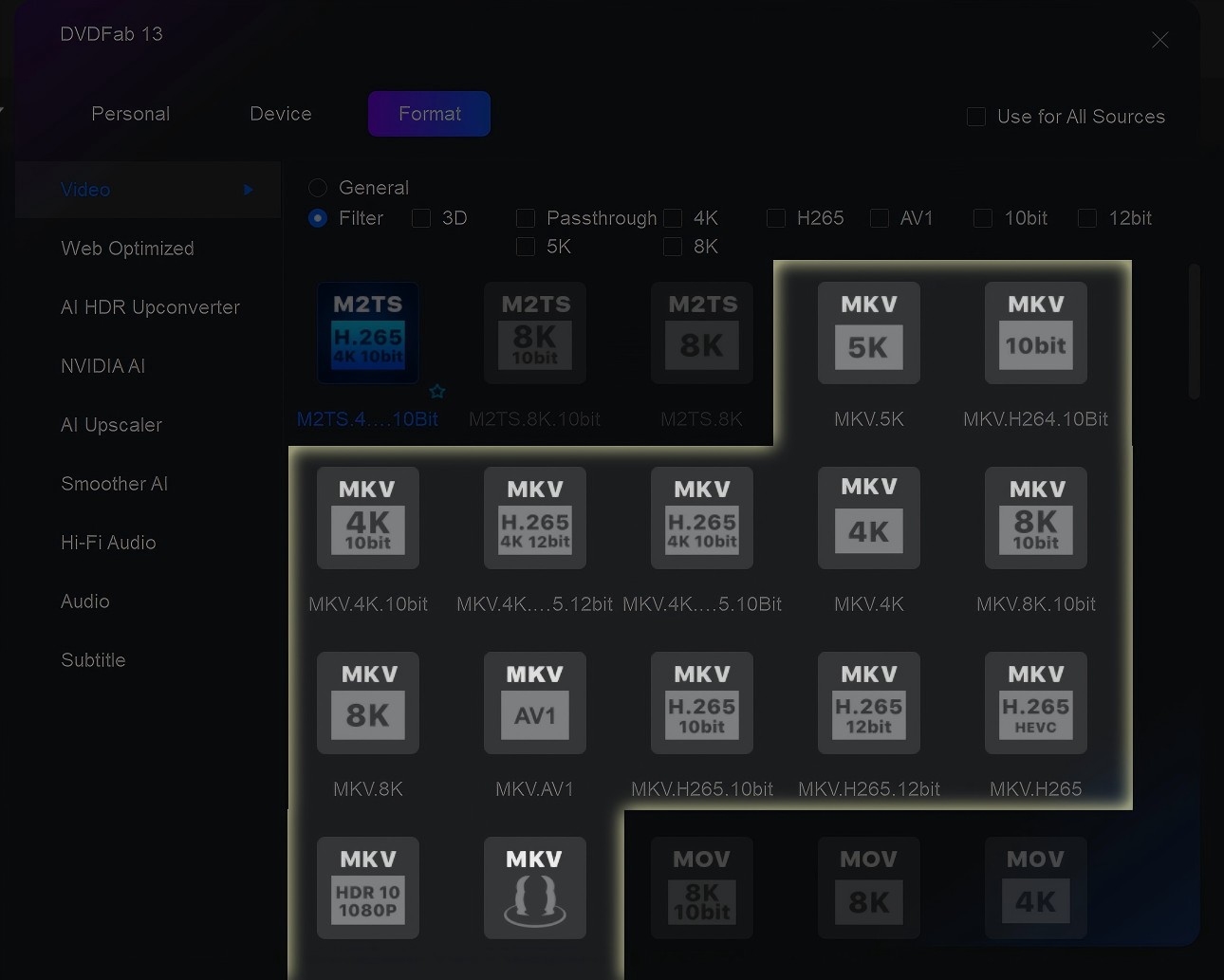
Open Choose Other Profile menu > Format > Video . DVDFab DVD Ripper includes a series of presets in MKV format, such as MKV Passthrough (lossless), MKV H.265 (compressed), 3D MKV, or high-resolution MKV (4K or 5K). Use the Profile filter to select one that best matches your needs. The following table is the common MKV profiles and when to use them.
| Profile | Details |
| MKV.Passthrough | Lossless mode that preserves original video titles, audio streams and multiple tracks. |
| MKV H.265 | Produces smaller files than H.264 at similar visual quality on compatible devices; results depend on the source and quality setting. 10-bit helps reduce banding; 12-bit is mainly for Dolby Vision and needs compatible playback. |
| MKV 4K / 5K / 8K | For playback on 4K/8K displays. For SD/HD sources, you can pair with AI upscaling tool like DVDFab AI Upscaler . |
| 3D MKV | Use for stereoscopic playback on 3D-capable TVs/projectors. |
If you're not sure which format will play best on your device, click Device to choose an output preset designed specifically for phones, tablets, TVs, and other playback devices.
Step 3. Edit Your Output
Return to the main panel, and customize your MKV output.
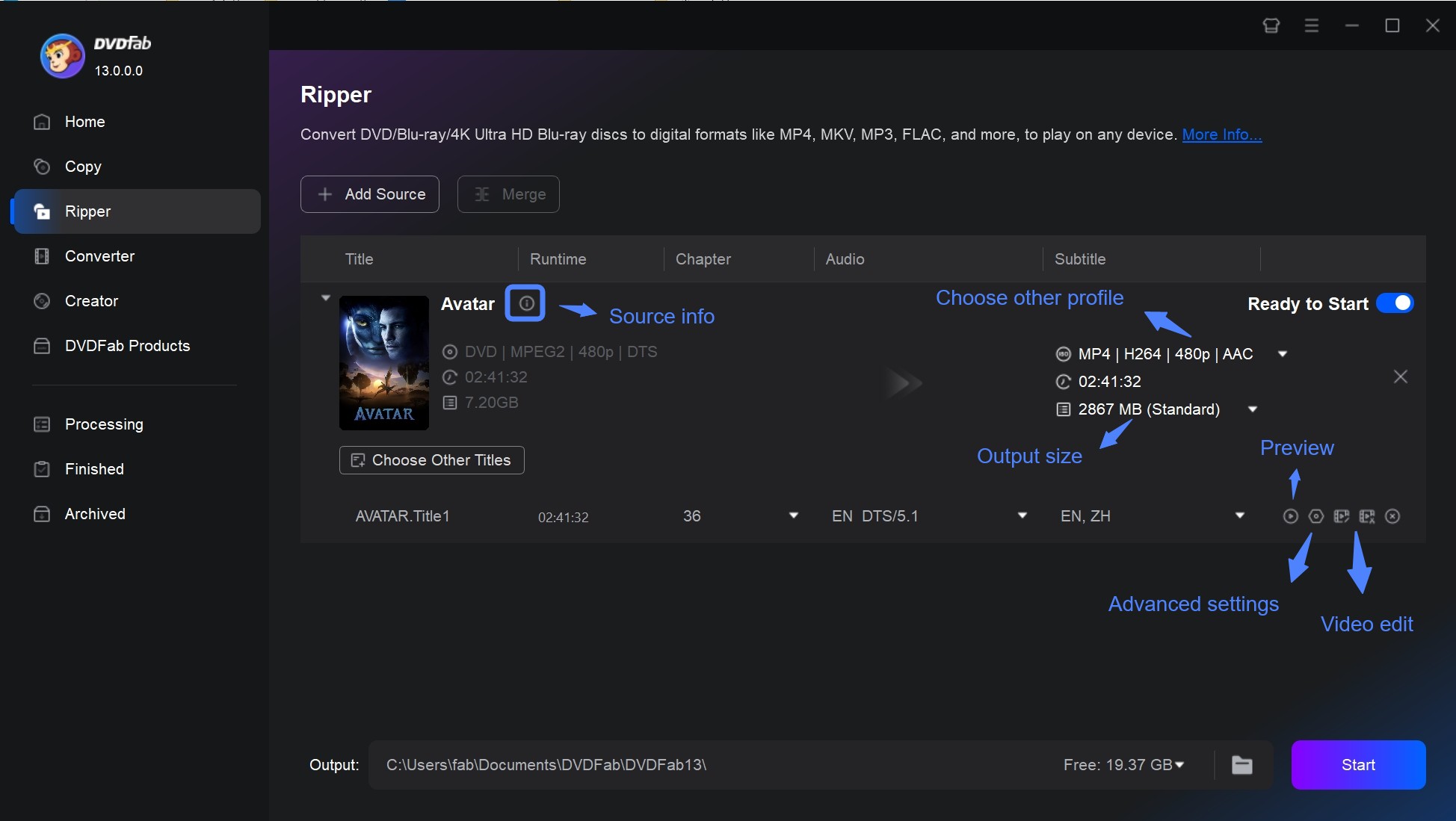
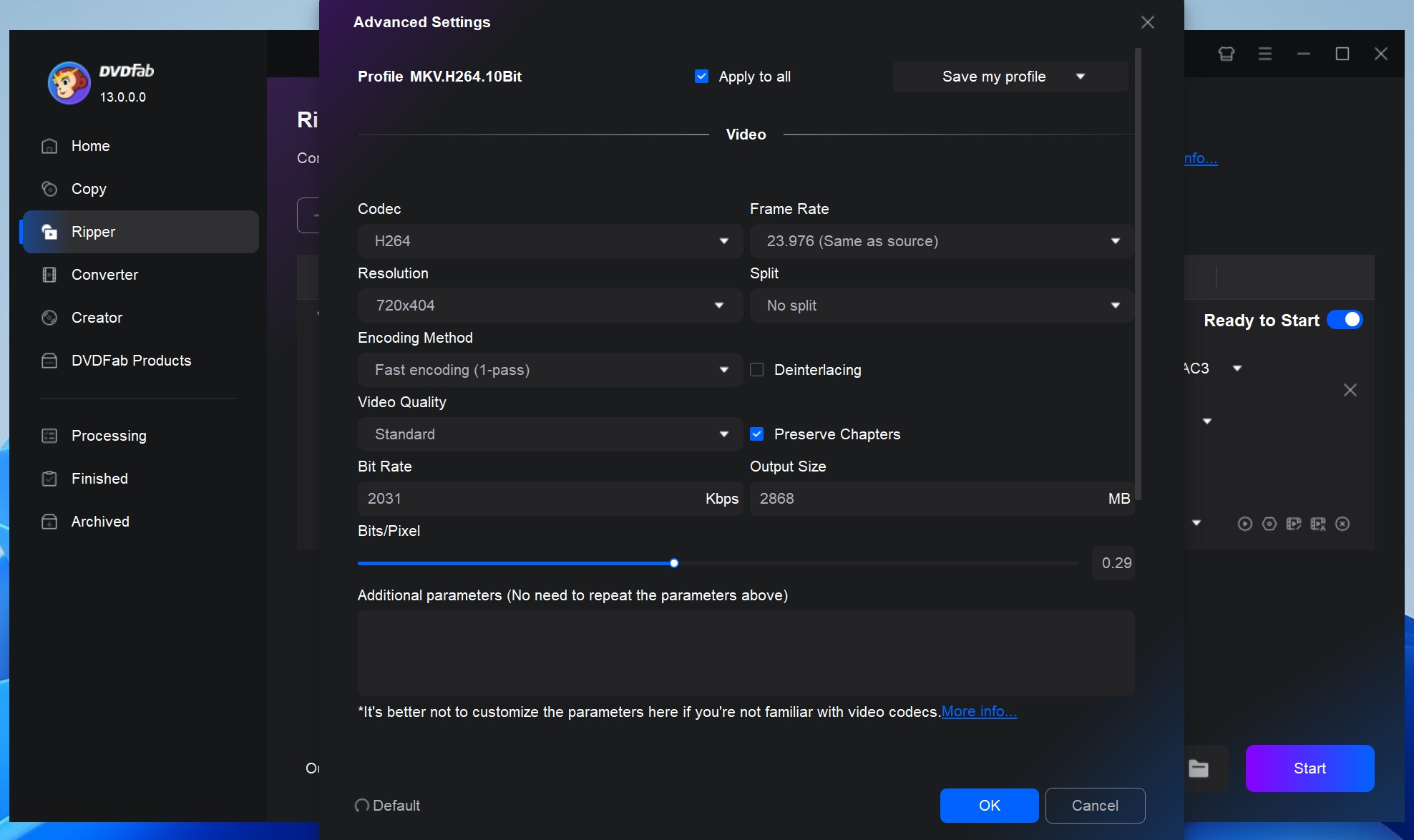
Advanced Settings: adjust video/audio parameters such as codec (H.264/H.265), bitrate, resolution, and frame rate.
Video Edit: trim clips, adjust brightness/contrast, change playback speed, or add subtitles, and visual effects.
Subtitles Tracks: Click the Subtitles drop-down menu to select the ones you want to keep, or add an external subtitle file. For a separate walkthrough on how to extract subtitles from a DVD , the dedicated guide covers each format in more depth.
- Choose Remux into file for switchable subtitles the player can toggle.
- Choose Direct render to video to burn subtitles into the video image so the player cannot toggle them off.
- If the disc has forced subtitles for non-English scenes, mark that track as forced so the player only shows it when needed.
Audio Tracks: Click the Audio Track drop-down box and keep only the tracks the library will actually use. In my own tests, adding every commentary and dubbed track inflates the file size and makes track switching in Plex noisier. For a home-theater archive I keep one language track at the highest available quality; for mobile viewing, a stereo AC3 or AAC track is enough and produces a smaller file. Before starting the full rip, preview one chapter in the player you plan to use to confirm the selected tracks and subtitles behave as expected.
Step 4. Start Converting DVD to MKV
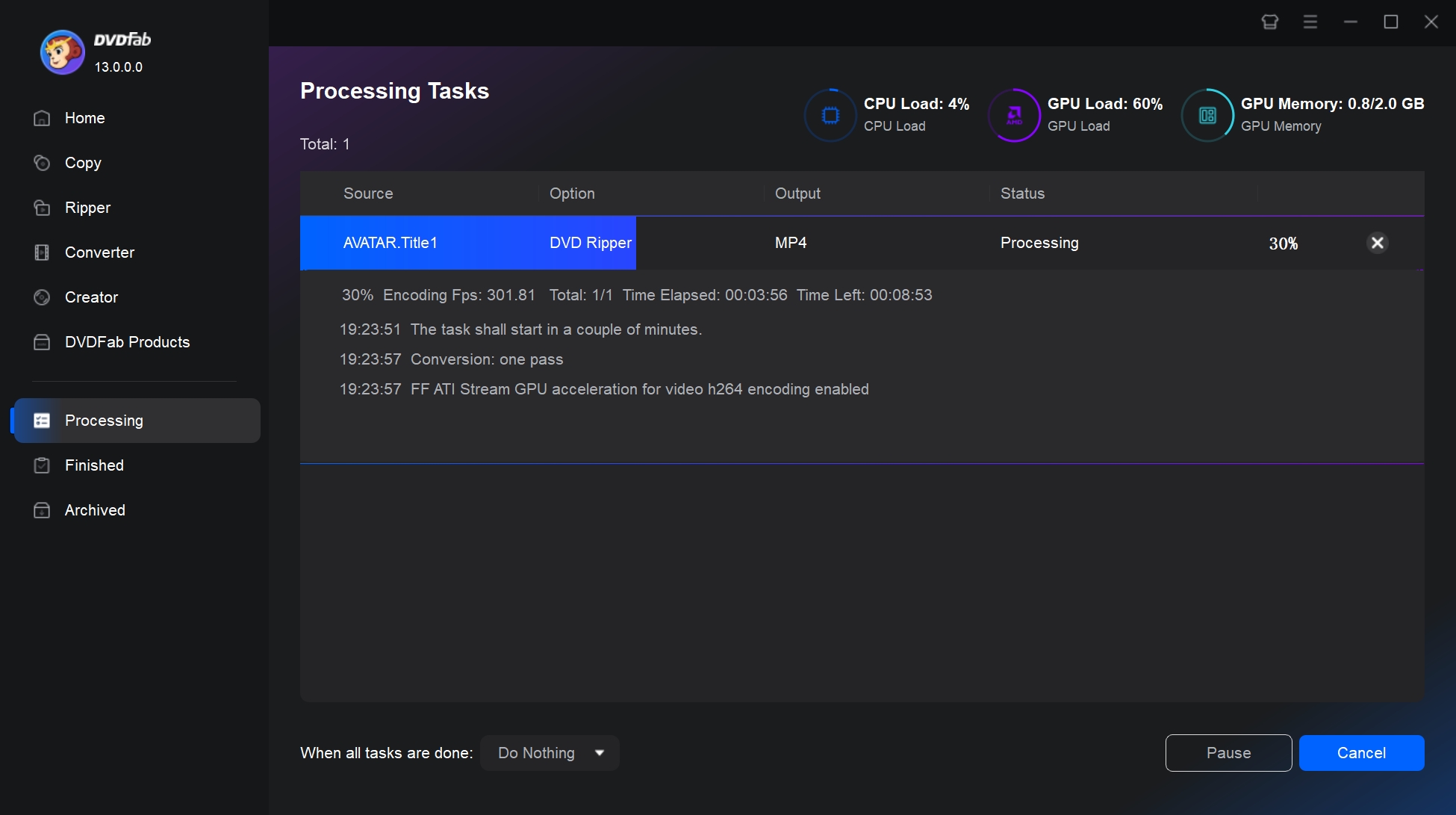
Select an output directory for your MKV output, and then click the Start button to initiate the DVD to MKV conversion.
- The powerful tool that supports any old or newly released encrypted DVDs.
- Convert ISO to MKV formats, including 3D, 4K/5K/8K, H265, 10/12 bit, etc.
- Support 1000+ video and audio output formats and 260+ preset devices.
- Support batch DVD to MKV conversion at GPU hardware accelerated speed.
- Sync metadata from TMDB and generate .nfo files compatible with Plex, Kodi, Emby, and PlayerFab.
- Comes with a powerful video editor to crop/merge videos, add watermarks, and even adjust video colors.
NOTE: DVDFab DVD Ripper offers a 30-day free trial (up to 3 DVDs). After the trial, it transitions to DVDFab HD Decrypter , an entry-level free option that handles older disc protections; support for newer protections and advanced features requires the paid Ripper module. Both are included in the DVDFab 13 package.
Convert DVD to MKV For Free with MakeMKV: Only Lossless
If you picked the lossless path in the decision table and want a free tool, MakeMKV is the most direct route. It is a dedicated MKV remuxer for DVD and Blu-ray, available on Windows, macOS, and Linux. Because MakeMKV rewraps the source video and audio into an MKV container without re-encoding, the output preserves all audio tracks, subtitles, chapters, and metadata, and the rip finishes quickly. File sizes stay close to the original disc (roughly 4-8 GB per DVD) because nothing is compressed.
MakeMKV can be used free while in beta with a periodically updated beta key. MakeMKV is the clean choice when you want a full-quality archive and have disk space for 4-8 GB per DVD. It does not re-encode, so if a smaller H.264 or H.265 file is the goal, plan to hand the MKV off to HandBrake afterward. In that case, the common workflow is a two-stage one: remux to MKV with MakeMKV, then open that MKV in HandBrake for compression. Stop after MakeMKV when full-size lossless files are acceptable; carry on to HandBrake when a smaller re-encoded MKV is worth the extra time and quality tradeoff.
- • Why I picked it: Free lossless MKV remuxing, preserving chapters, tracks, and metadata across Windows, macOS, and Linux.
- • Working System: Windows XP or later & Mac OS X 10.6 and later & Linux x86 or amd64
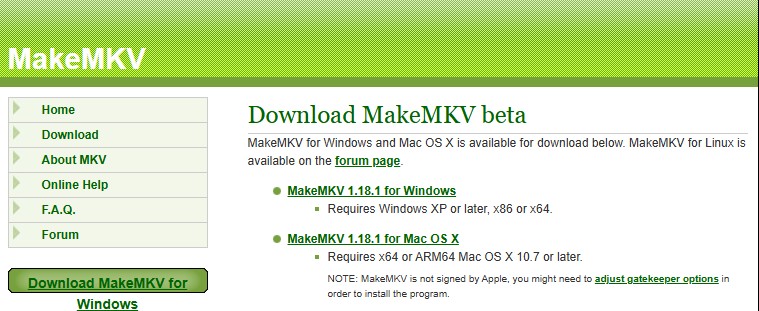
Step 1. Install and Open MakeMKV
Go to the official MakeMKV website and download the current build for Windows, macOS, or Linux. Follow the installation prompts, then launch the application on your computer.
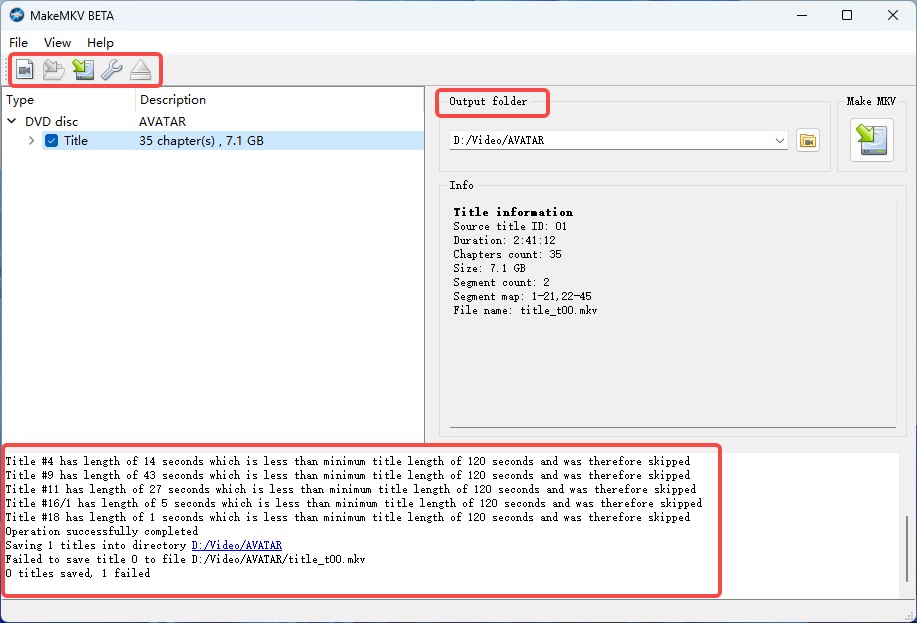
Step 2. Insert DVD and Scan Titles
Place your DVD into the computer's DVD drive and wait a few seconds for the program to recognize it. In MakeMKV, click the large DVD drive icon that appears in the main window. The software will then scan the disc and display all available content.
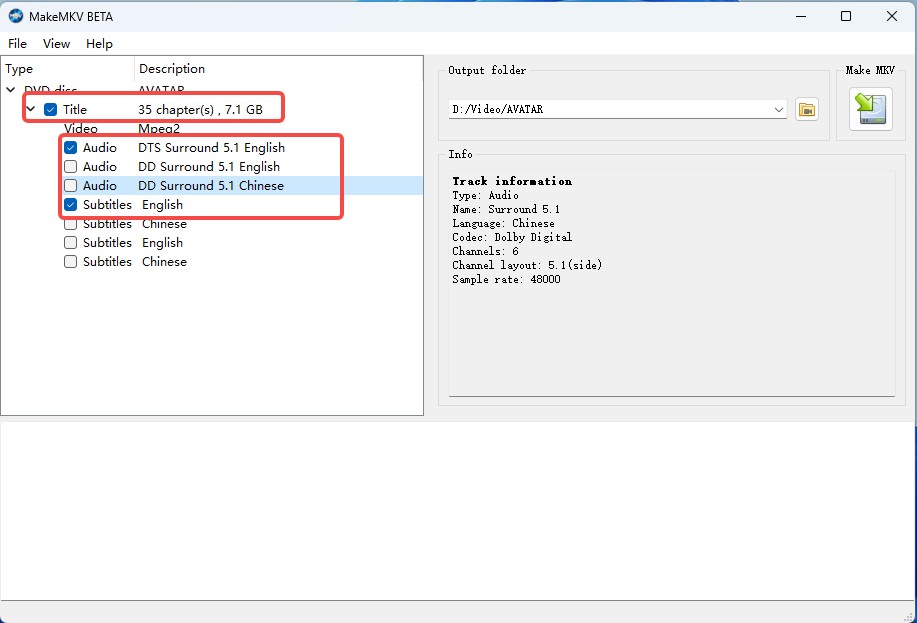
Step 3. Select Titles, Tracks and Subtitles
In the list that appears, tick the boxes next to the video titles and the audio or subtitle tracks you want to keep. You can deselect items you will not use, such as commentary or alternate language dubs, to reduce the file size. Runtime is only an initial clue for the main movie: I also check the chapter count, the audio and subtitle mix, and play a short preview after the rip before deleting the source. TV discs are a common exception, because episodes are often numbered generically, so I confirm the correct episode order against the printed sleeve before naming the output files.
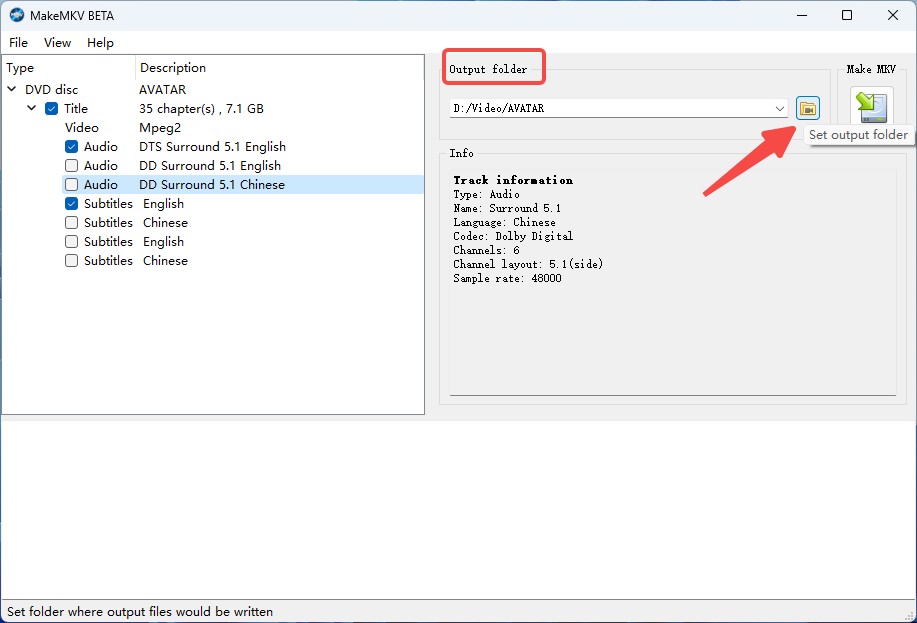
Step 4. Set Output Folder and Start the Conversion
Choose a destination folder on your computer where you want the MKV file to be saved, and make sure there is sufficient disk space available, as DVD movies typically require between 4 and 8 GB. Once ready, click the Make MKV button to begin the conversion.
- Read AACS/BD+ protected discs.
- Support both DVD and Blu-ray to MKV conversion.
- Lossless conversion quality.
- Save all the metadata information.
- It converts DVD to MKV format only.
- Lacks post-conversion editing options.
- The output file is quite large.
- Only some types of encrypted discs are supported.
Convert DVD to MKV Using HandBrake: Only Re-encode
If you picked the compression path in the decision table, or you already have a lossless MKV from MakeMKV that you want to shrink, HandBrake is the standard free tool. It is a free, open-source transcoder for Windows, macOS, and Linux with fine-grained H.264 and H.265 controls, MKV, MP4, and WebM output, GPU-aware presets, and batch queue support. HandBrake is a transcoder for sources it can read; it is not itself a copy-protection tool, and its own documentation notes that it will not handle commercial DVDs that carry native disc protection. On unprotected or already-readable sources (including an MKV produced by MakeMKV), it produces some of the most consistent H.264 and H.265 output at a given file size.
HandBrake shines when you want detailed control over codec, bitrate, and audio on a source it can already read. For a one-step backup of a protected commercial disc, start with a ripper that supports protected disc content and feed the output into HandBrake if you also want compression.
- • Why I picked it: Free transcoder for readable sources, with detailed H.264/H.265 controls for compact MKV files.
- • Working System: Windows 10 and later & macOS 10.13 and later & Linux
Step 1. Install HandBrake and Required Libraries
Download the current build of HandBrake from its official website and install it by following the on-screen instructions.
HandBrake does not itself handle commercial disc protection, so it is designed for unprotected or already-readable sources. For a homemade DVD or a lossless MKV produced earlier by MakeMKV, HandBrake reads the source directly. For a commercial disc that carries native protection, a ripper that supports protected disc content is the more reliable starting point, and HandBrake can compress the resulting file afterward.
Step 2. Open HandBrake and Load DVD Source
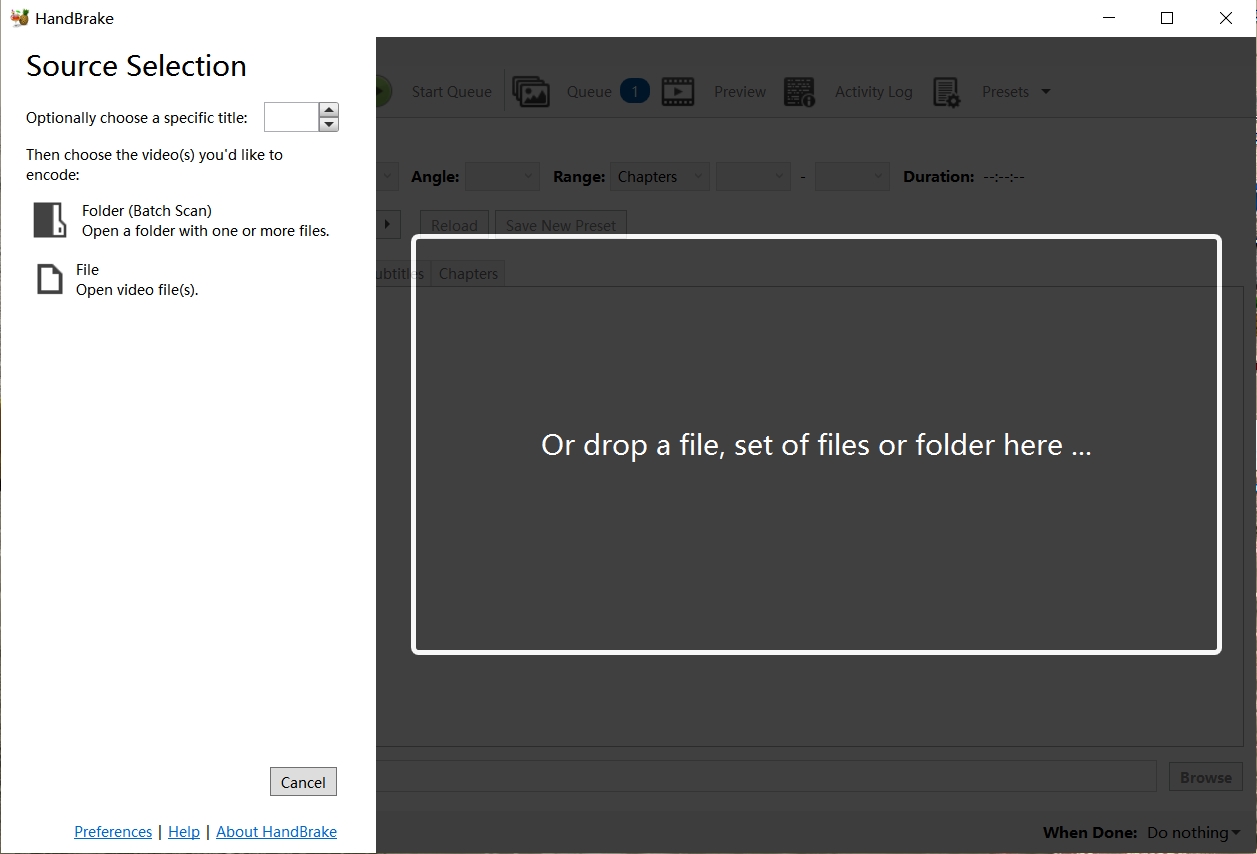
Insert the DVD into your computer's DVD drive. Launch HandBrake, and then it will scan the disc automatically. If the scan doesn't start, select the DVD drive as the source.
Step 3. Select the Main Title and Output Format
After the scan is complete, you will see all the available titles on the DVD. The longest runtime is only a starting clue for the main movie: I also compare chapter count, audio and subtitle tracks, and play a short preview before committing to a long encode. On a TV disc, confirm the episode order against the printed sleeve before naming the output file.
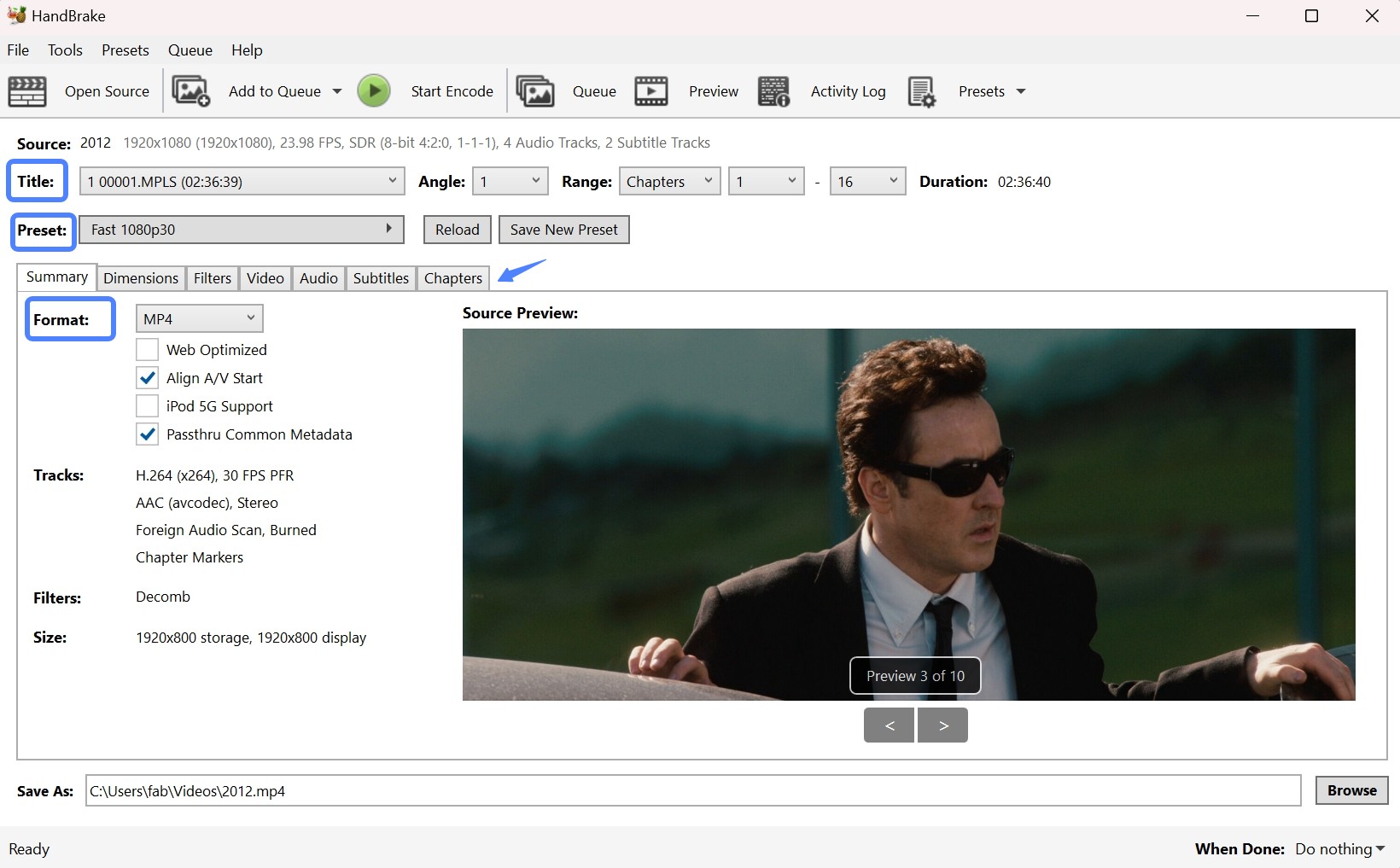
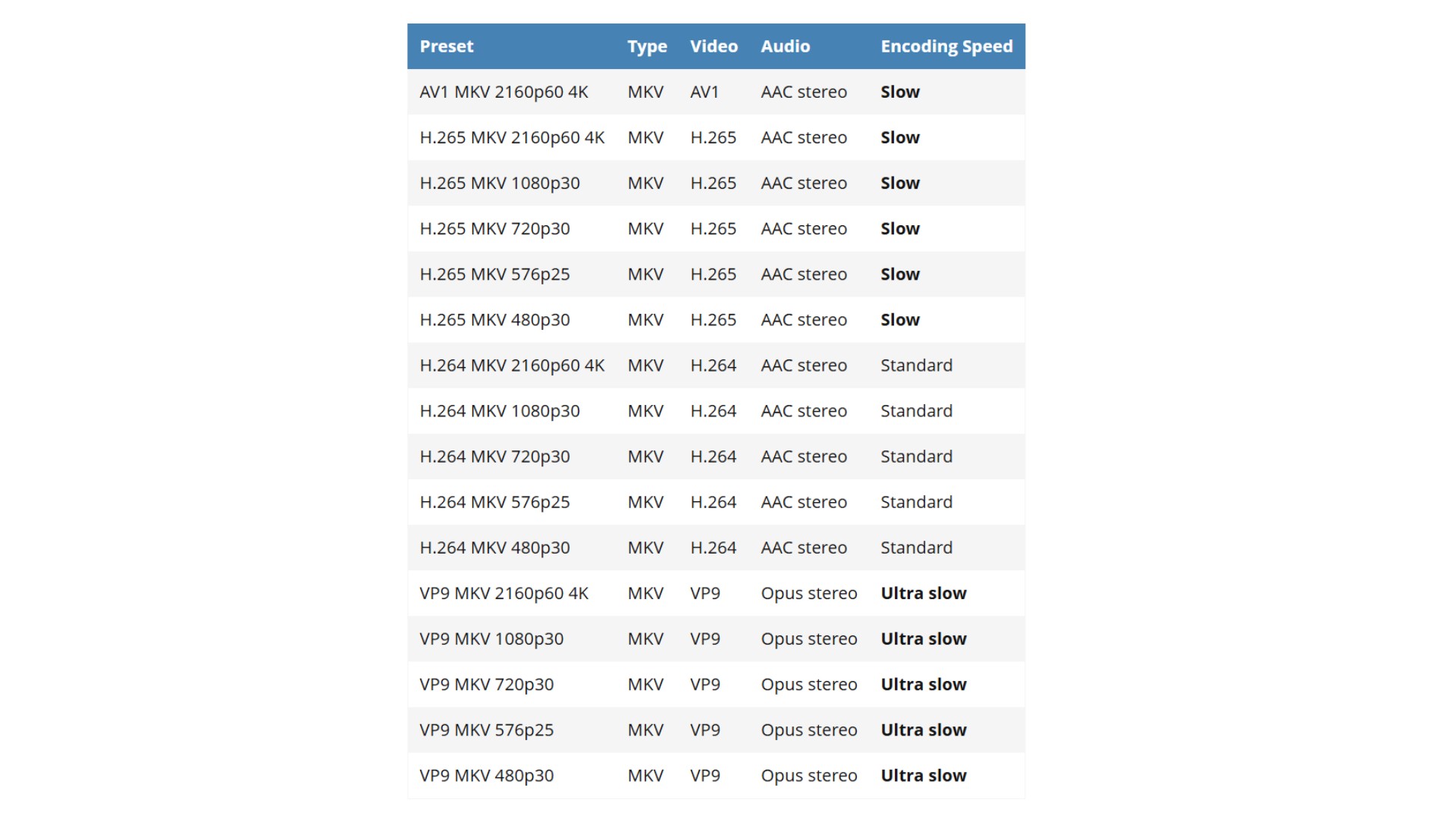
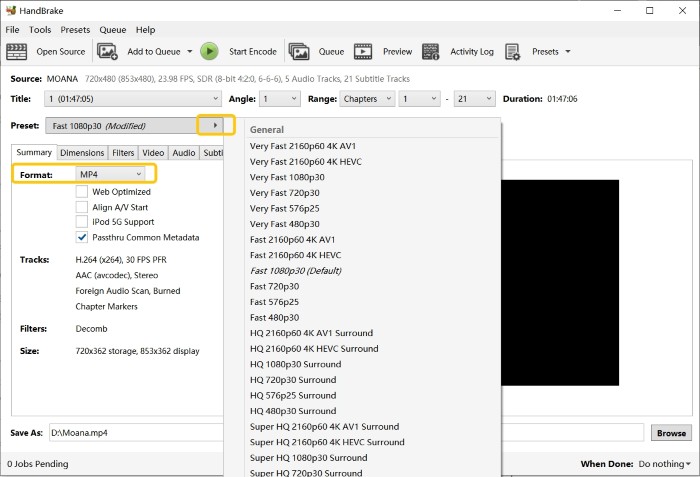
On the main screen, open the Format dropdown and select MKV. If you want more fine-grained control over the output format, such as changing resolution and codecs, open the Preset drop-down box. In HandBrake's official presets, each Matroska preset is named according to the type of video it produces, its maximum resolution, and its maximum frame rate. The following image shows HandBrake's MKV presets and the conversion speed for each preset.
Step 4. Configure Video and Audio Settings
In the Video tab, choose a codec and quality setting that matches how you will play the file. H.264 is the safer compatibility choice across older TVs, phones, and streaming players; H.265 can save 30-40% file size on devices that decode it natively, but it puts more load on a low-power server and can cause Plex clients without hardware HEVC support to transcode on playback. RF 20-23 is a reasonable starting range for standard-definition DVD sources, though the right value depends on the source, encoder, playback device, and how much file size you can accept. Many DVD sources are interlaced or telecined, so enable Decomb or Yadif in the Filters tab only when a scan of the source confirms it; do not add upscaling filters, because they will not restore detail that is not in the DVD to begin with.
In the Audio tab, keep only the tracks you actually use and drop commentary or alternate languages you will not play. Encode a short one- or two-minute sample before queuing a long batch so you can confirm the codec, RF value, and audio choice hold up on the player you use.
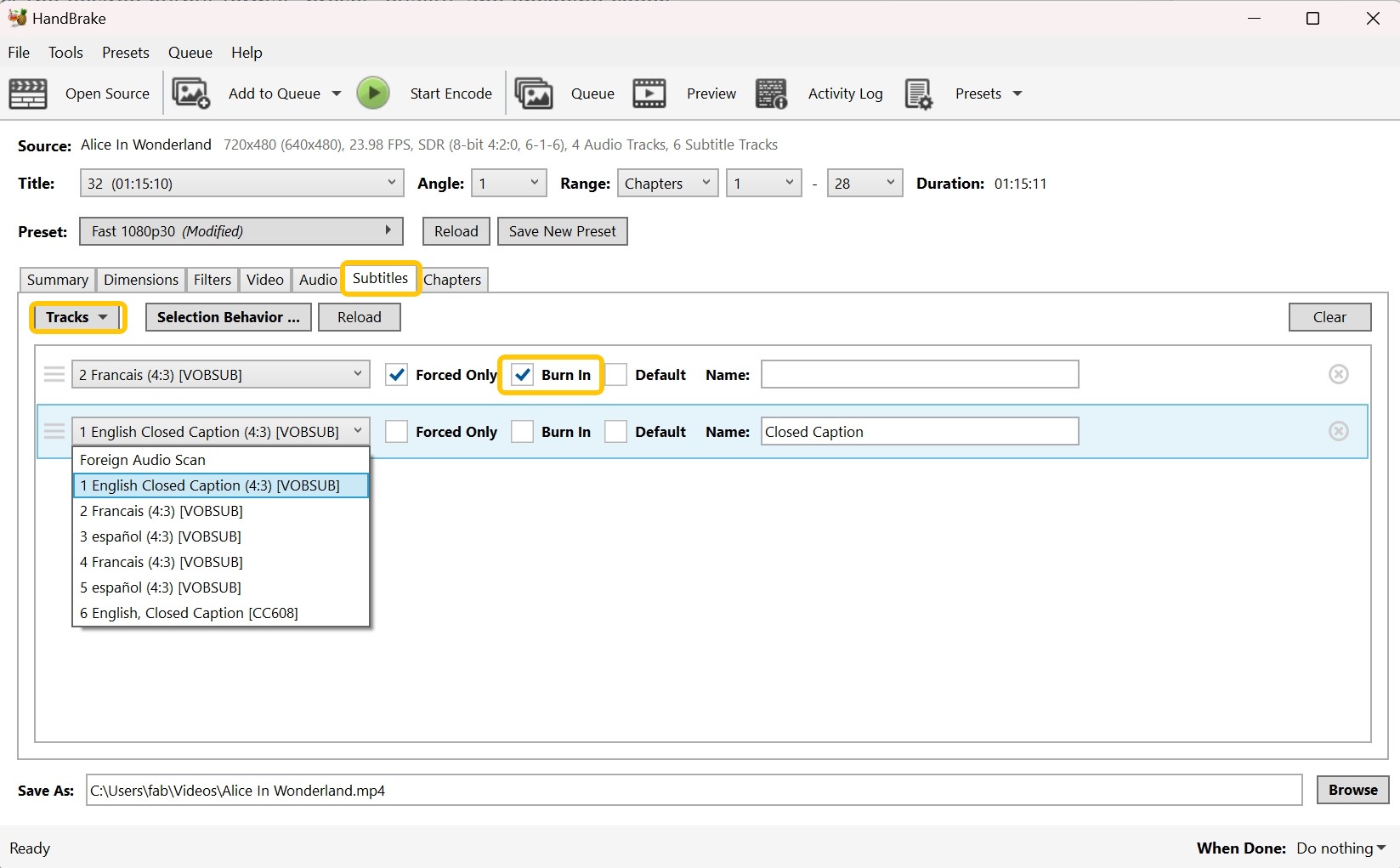
In the Subtitles tab, select the subtitle tracks from the DVD or import external files such as .SRT. Most DVD subtitles are bitmap-based (VobSub), which many players display without issues in MKV but which cannot be turned into simple text without OCR. Choose Burn In if you want the subtitles permanently visible (useful for players that do not render bitmap subtitles reliably), or leave them switchable to toggle in the player.
Step 5. Rip DVD to MKV with HandBrake
To select the output folder and name your file, click the Browse button at the bottom of the window. Finally, click the Start Encode to begin the conversion. HandBrake will process the disc and generate an MKV file in the location you specified.
- Completely free and open-source.
- Rip both DVDs and Blu-rays.
- Advanced settings for fine-tuning output quality.
- Cross-platform compatibility.
- Can be complex for beginners.
- Unable to rip copy-protected DVDs.
- Limited output formats.
- Occasional stability issues during conversion.
Three More DVD to MKV Converters
1. Freemake DVD Ripper: Legacy Windows Option
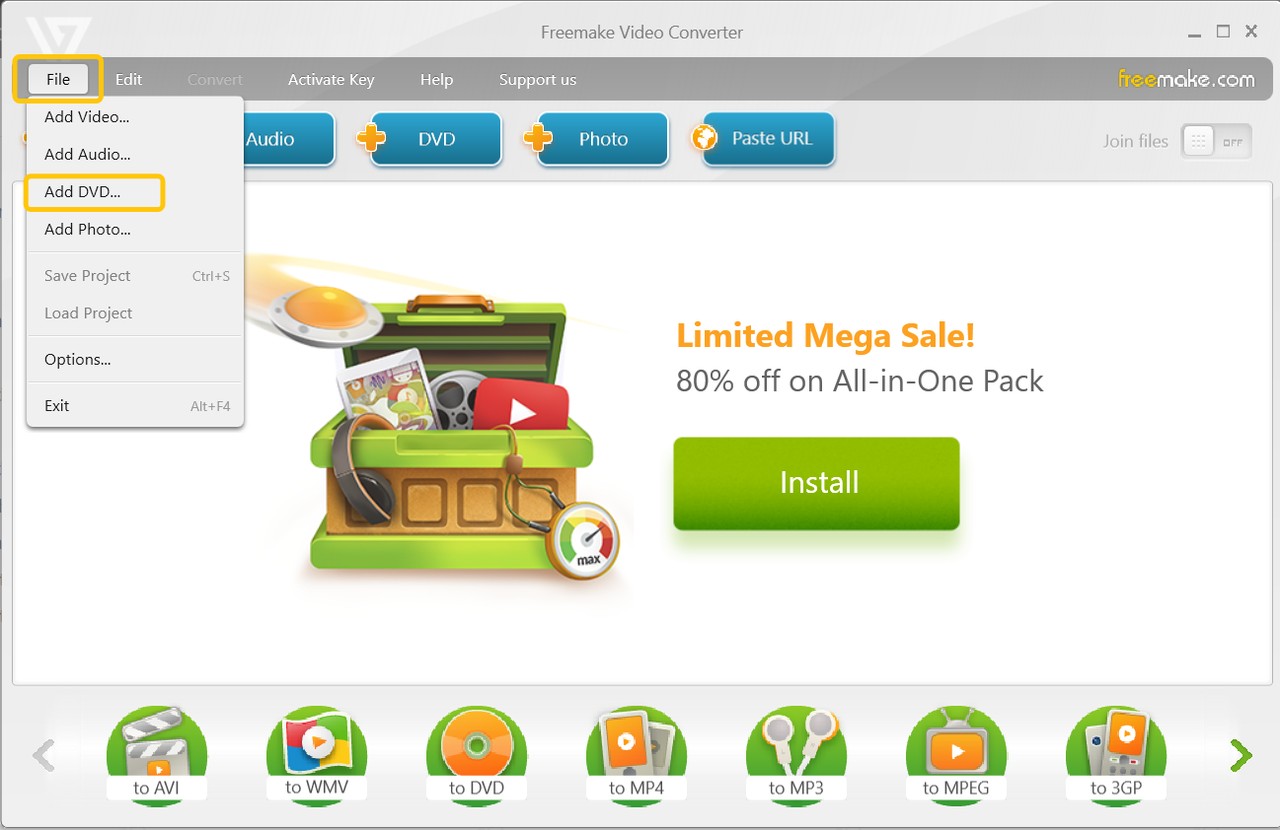
Freemake DVD Ripper is a Windows-only ripper that can output MKV from unprotected DVD-5 and DVD-9 sources, with basic controls for resolution, frame rate, and bitrate. Its official update signals look stale, so I would treat it as a legacy option today rather than a current peer of MakeMKV or HandBrake.
The other catch: the free version adds a Freemake logo and, in later releases, a watermark inside the video. On an unprotected disc, if you can live with the Freemake watermark on longer clips and you already run Windows, it can still do the job. In most other cases, MakeMKV or HandBrake is the cleaner choice.
- • Why I picked it: Legacy Windows option for unprotected DVD-5 or DVD-9 sources.
- • Working System: Windows 11, 10, 8, 8.1, 7, Vista
- Rip both DVDs and Blu-rays to 20+ video formats.
- Read region-coded discs.
- Come with video editing options.
- Can't rip some discs with DVD copying protection .
- Unable to read ISO image file.
- Incompatible with Mac and Linux systems
- The output MKV file is watermarked if you use the free version.
2. Wondershare UniConverter (Windows, Mac)
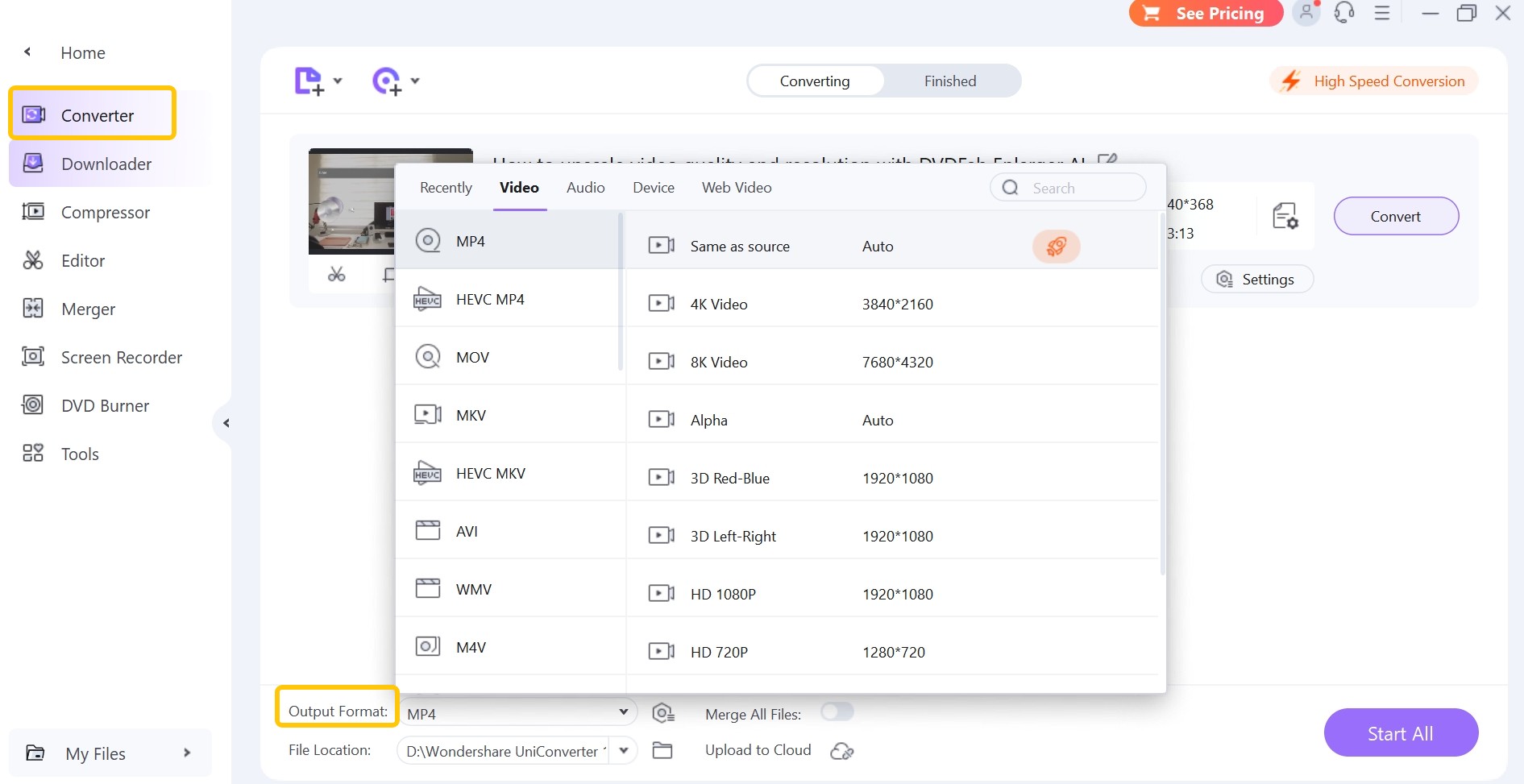
UniConverter , originally known as Wondershare Video Converter Ultimate, is a paid video conversion suite that includes DVD-to-MKV ripping. It accepts DVDs and ISO files as input and provides output settings such as cropping, resolution, bitrate, and audio quality. The current release adds an AI Smart Format Recommendation that suggests an output preset, which can be useful for readers who are not sure which codec to pick.
The free trial is restrictive, so plan on paying to use it seriously. UniConverter earns its price when you also need format conversion, light editing, and device presets alongside DVD ripping. For a one-off MKV backup with nothing else attached, MakeMKV or HandBrake handles the same task for free.
- • Why I picked it: Its AI-recommended formats feature simplifies optimal format selection.
- • Working System: Windows 10/8/7/XP/Vista & macOS 10.7 and later
- Convert DVD and ISO to MP4 , MKV, AVI, etc
- Equipped with advanced editing options
- Convert video/audio/image among 1000+ formats
- AV1 GPU accelerated conversion speed
- Unable to rip Blu-ray to MKV
- Unable to read some encrypted discs
- Download additional software by default
- Limited functions in trial version
- It integrates many extra features, which can be overwhelming for beginners
3. AnyMP4 DVD Ripper (Windows, Mac)
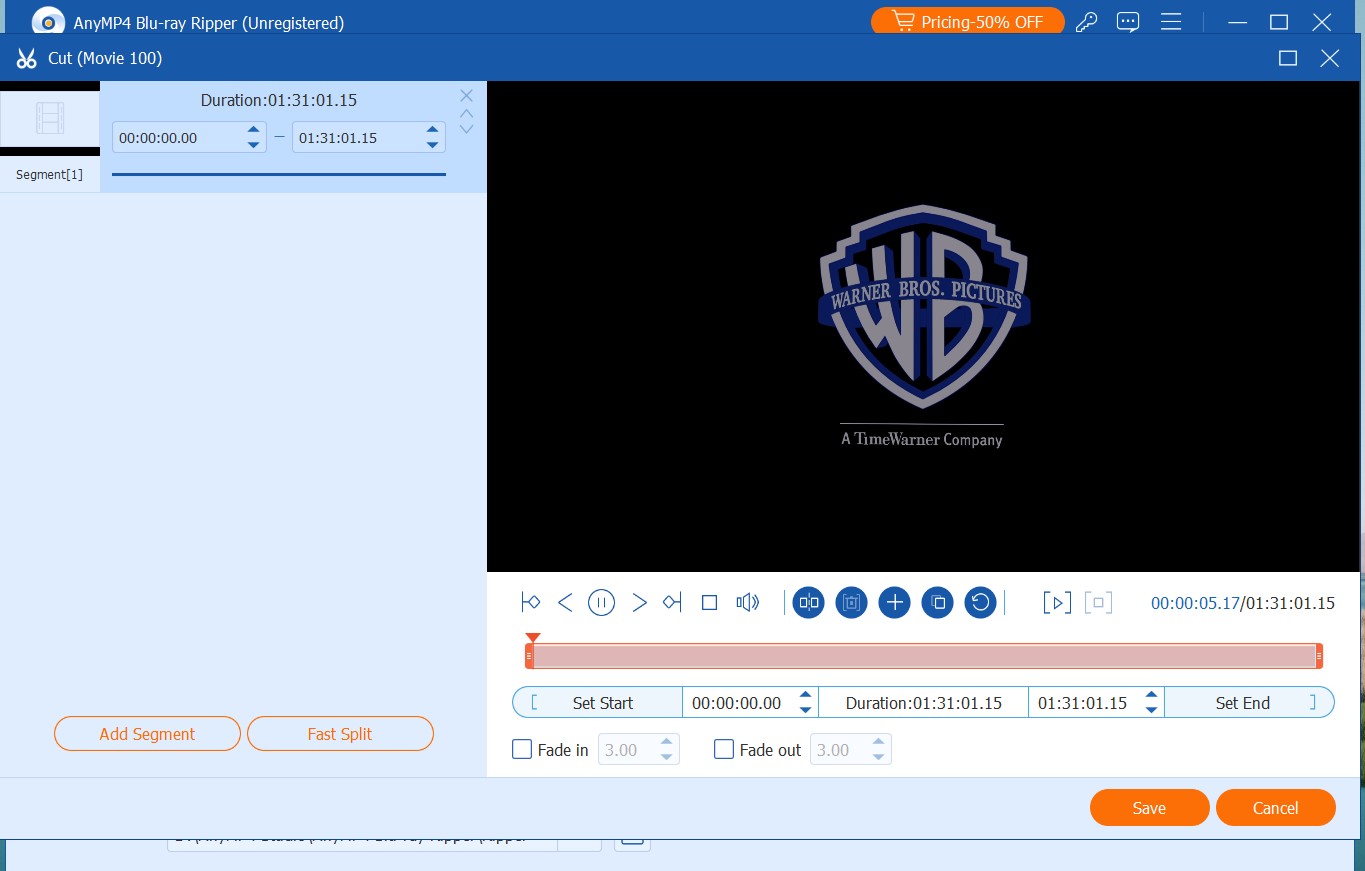
AnyMP4 DVD Ripper accepts DVD discs, ISO files, and folders as input, and offers MKV alongside a wide range of other output formats. It bundles extra utilities such as a metadata editor, GIF maker, video compressor, and basic video enhancer. AnyMP4 is a fit when MKV output is only part of the job and you also want a metadata editor, GIF maker, and video compressor in the same window. On a modest machine that only needs to rip DVDs to MKV, the extra utilities add weight without helping the core task.
- • Why I picked it: All-in-one toolkit to output MKV plus metadata editor.
- • Working System: Windows 7/8/10/11 & macOS 10.12 or later
- Non-standard DVDs, commercial DVDs or corrupted DVDs are all supported.
- The multi-core processor ensures smooth DVD ripping process.
- Users can create ideal MKV files with powerful editing tools.
- The free trial is more limited than other paid tools.
- Video file compression can result in quality loss.
Comparison: Which DVD to MKV Converter is Best for You

I have introduced the six best DVD to MKV converters, including DVDFab DVD Ripper, MakeMKV, HandBrake, Freemake, Wondershare, and AnyMP4 DVD Ripper. In this section, I will conduct a comprehensive comparison of these tools, helping you determine which tool is best suited for your specific needs.
| Tool | OS | Lossless remux + re-encode | Audio/subtitle control | Best For | Not ideal for |
| DVDFab DVD Ripper | Windows, macOS | Both, in one app (Passthrough + H.264/H.265 MKV) | Detailed, switchable or burned-in | Passthrough and compression in one desktop workflow, including protected discs you are authorized to copy | Readers who only need a free lossless remux |
| MakeMKV | Windows, MacOS, Linux | Lossless remux only | Keeps all tracks | Free lossless MKV archive | A one-step smaller H.264/H.265 file |
| HandBrake 1.11.2 | Windows, MacOS, Linux | Re-encode only | Detailed, per-track | Compressing an unprotected or already-readable source with fine codec control | Reading commercial disc protection in one step |
| Wondershare UniConverter | Windows, macOS | Re-encode only | Standard track controls | A broader video conversion suite alongside DVD ripping | A quick, free MKV rip |
| AnyMP4 DVD Ripper | Windows, macOS | Re-encode with lossless-style copy | Standard, plus basic editor | A toolkit with metadata editing and light utilities | A minimal MKV-only workflow on a modest machine |
| Note | Version numbers and OS support current as of August 2026. | — | — | — | — |
Test Results: DVD to MKV Conversion Performance
All DVD to MKV converters covered in the preceding section have their own strengths and limitations. To move beyond feature lists, I conducted hands-on testing of Reddit's top three picks for DVD-to-MKV tools (DVDFab, MakeMKV, and HandBrake) under identical conditions, focusing on key metrics such as ripping speed, output file size, and quality.
💡 Test Environment and Movie Information
- Operating System: Windows 10 X64, Intel i7-6700 CPU, NVIDIA RTX 4060 Ti 8GB
- Source Movie: 8 Mile; 1h50m; 6.13GB
| Software | Codec | Output Format | Output Video/Audio | Conversion Time | Output File _ Size |
| DVDFab (Re-encoding) | H264 / AAC | MP4 | 720*404 AAC 5.1 | 5min31s | 1.91GB |
| DVDFab (Passthrough) | No Encoding | MKV | 720*480 DTS 5.1 | 1min37s | 5.07GB |
| MakeMKV (Passthrough) | No Encoding | MKV | 720*480 AC3 5.1 | 1min34s | 6.01GB |
⭐Key Takeaways
Speed: Both DVDFab (Passthrough) and MakeMKV finished in under 2 minutes, with nearly identical speed.
File Size : DVDFab's passthrough output was about 15% smaller than MakeMKV, saving disk space without re-encoding.
Audio : DVDFab preserved DTS 5.1 audio, which generally provides higher fidelity than MakeMKV, especially on high-end audio systems.
Flexibility : Unlike MakeMKV, DVDFab also supports full re-encoding, allowing conversion to MP4 and 1000+ formats with adjustable profiles
Fix Common DVD-to-MKV Problems
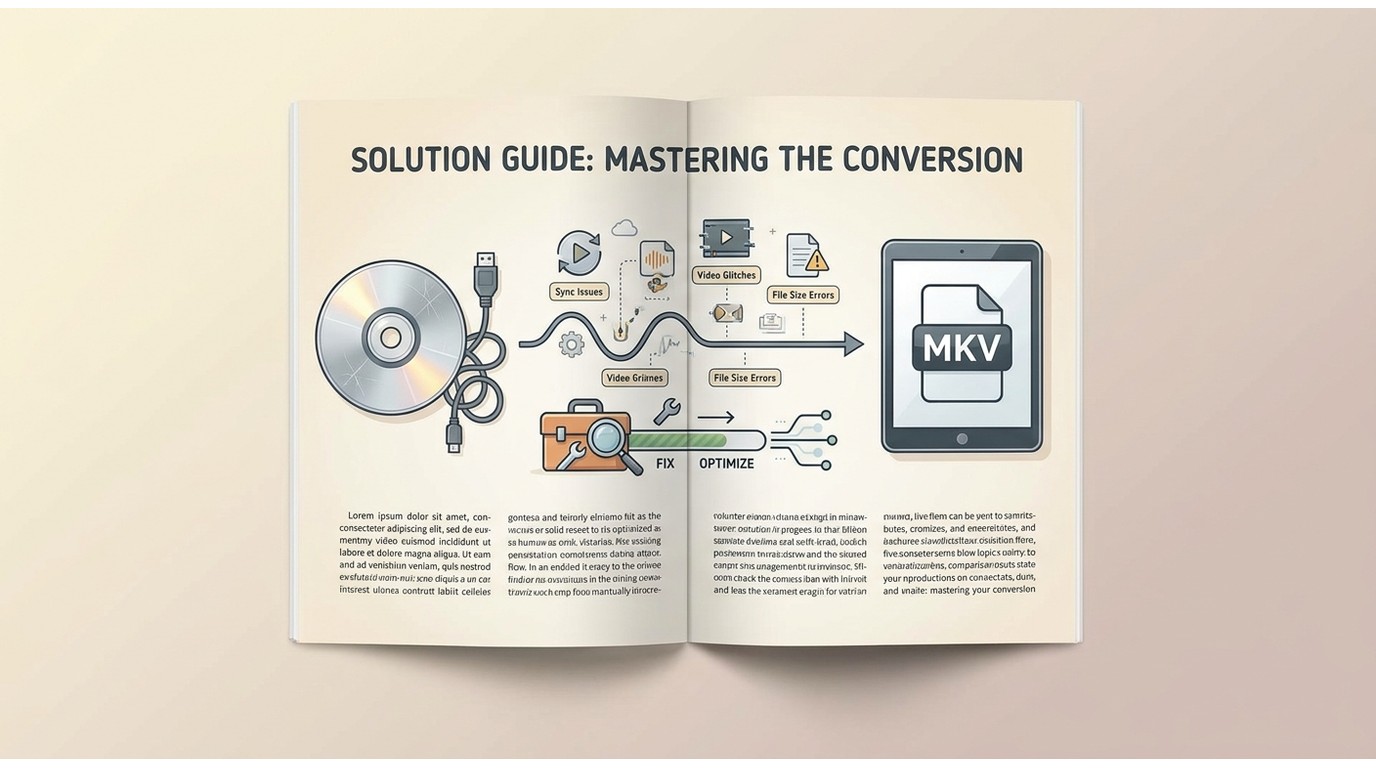
Most DVD-to-MKV failures fall into a small set of causes. The table below groups the symptoms I have seen most often across DVDFab, MakeMKV, and HandBrake, along with the check that usually isolates the problem before you delete the source disc.
| Symptom | Likely cause | Check | Next step |
| Disc will not mount or shows a region error | Drive region not set, dirty disc, or drive firmware issue | Try the disc in a different player or drive; check the drive's region counter | Clean the disc; set the drive region to match the disc; test another disc to isolate a hardware fault |
| Disc plays in a player but the ripper cannot open it | Native disc copy protection not handled by the tool | Test the same disc in a tool that supports the current disc protection | Use a ripper like DVDFab that supports protected disc content on discs you own or are authorized to copy; HandBrake alone is not enough for many commercial discs |
| Wrong title or wrong episode ends up in the MKV | Fake or dummy titles on the disc, or picking by runtime alone | Compare title runtime, chapter count, and audio tracks to the sleeve | Preview 30-60 seconds of the selected title before starting the full rip; on TV discs, confirm the episode order |
| Output MKV is unusually small (a few MB) or the rip stalls near the end | Bad sector on the disc, or interruption from another disc-scanning app | Look at the log for read retries; test another title on the same disc | Clean the disc, close background disc software, and retry; if a single sector is unreadable, rip the other titles first |
| Audio, subtitles, or chapters are missing in the finished file | Tracks were deselected in the ripper, or the container/player is dropping bitmap subs | Reopen the source and confirm the selected tracks; play the MKV in a second player (e.g. VLC) | Reselect the missing tracks and re-rip; for bitmap subtitles, choose Burn In if the player will not render them |
| MKV will not play on a target device or stutters in Plex | Codec mismatch (often H.265 without hardware support) or unsupported audio | Check the device's codec support; watch the Plex client for a transcode indicator | Re-encode to H.264 for wide compatibility, or convert audio to AAC alongside the source track |
Before deleting the source disc, run a short verification pass on the MKV: open it in the player you actually use, jump to the last chapter to confirm the encode completed, toggle each audio track and subtitle you kept, and check that chapter marks work. A two-minute check has saved me from re-ripping full discs more times than I would like to admit.
FAQs About Ripping DVD to MKV
Can VLC convert DVD to MKV?
VLC can open a readable DVD source and save it in an MKV container through Convert/Save. It is best suited to unprotected discs and offers less title, audio-track, and subtitle control than a dedicated DVD ripper.
Is MakeMKV still free?
MakeMKV's DVD conversion remains free without a time limit. Blu-ray and UHD features require the shareware trial, a current beta key, or a paid registration key.
How do I convert DVD to MKV on Windows and Mac?
For a homemade or otherwise readable DVD, use MakeMKV for a lossless MKV or HandBrake for a smaller H.264/H.265 MKV. For commercial discs, use software that supports the disc and only copy media you own or are authorized to copy, subject to local law.
How do I convert DVD files to MKV on Linux?
On Linux, MakeMKV can remux a DVD to MKV without re-encoding, while HandBrake can compress a readable DVD or an existing MKV. Select the title, choose the audio and subtitle tracks, set MKV as the container, and test the finished file before deleting the source.
Final Verdict
Converting your DVDs to MKV is a great approach to protect your movie collection by making it digital, since digital movies don't get worse over time like physical discs do. There are several software that allow you to rip DVD to MKV, but if you want the best, I recommend trying out DVDFab DVD Ripper. Taking into account the operating system, convenience of use, supported DVDs, and conversion speed, it is the best pick.

![How to Rip DVD with Subtitles and Extract Subtitles from DVD to SRT [2026]](https://images.dvdfab.cn/media/How_to_Rip_DVD_with_Subtitles_and_Extract_Subtitles_from_DVD_4rlhgw.png/public) How to Rip DVD with Subtitles and Extract Subtitles from DVD to SRT [2026]By Wenny Yan - Aug 13, 2026
How to Rip DVD with Subtitles and Extract Subtitles from DVD to SRT [2026]By Wenny Yan - Aug 13, 2026 Convert DVD to WMV on Win & Mac: Tested Tool and StepsBy Wenny Yan - Aug 10, 2026
 2026 Tested ISO Converter Tools for Images, DVDs, and ISO FilesBy Wenny Yan - Aug 7, 2026
 How to Convert ISO to MKV Without Quality Loss or With CompressionBy Wenny Yan - Aug 6, 2026